Generate conversation summaries
This is a preview feature. It may be subject to change or removal with no further notice.
To enable preview features, set com.unblu.platform.enablePreview to true.
For more information on preview features, refer to the Unblu release policy.
Conversation summaries help users get the overall gist of a conversation without having to read every single message. Having summaries generated by large language models (LLMs) leads to summaries with more consistent structure and content, making them easier for readers to absorb. It also saves users time creating them.
Server or account setup
To generate conversation summaries, you must first configure your Unblu account or server.
Enable conversation summaries
To make it possible for Unblu to generate conversation summaries, there are two configuration properties that you must set in the ACCOUNT or GLOBAL scope:
For Unblu to generate summaries of conversations, both of the properties must be true.
Configure the summary provider
Once you’ve enabled conversation summaries for your Unblu account or server, you must configure your summary provider. This is the service that generates the summary based on the input and the prompt that Unblu sends it.
At present, Unblu supports three summary providers:
Select the summary provider your organization uses in com.unblu.ai.conversation_summary.conversationSummaryLlmProvider.
Next, provide Unblu with the information it needs to access the summary provider. The information required varies from provider to provider.
Azure OpenAI (click to open)
If your summary provider is Azure OpenAI, you must set the following configuration properties:
OpenAI (click to open)
If you’re using OpenAI on a platform other than Azure as your summary provider, set the following configuration properties:
Ollama (click to open)
If you’re using Ollama to run an LLM as your summary provider, set the following configuration properties:
Additional settings for summary providers
You can define in greater detail how Unblu interacts with the summary provider.
-
com.unblu.ai.conversation_summary.conversationSummaryTimeout specifies how long Unblu waits to receive the summary from the LLM generating it.
-
com.unblu.ai.conversation_summary.llmMaxTokens determines how many tokens of a conversation are sent to the summary provider at once. Make sure the value doesn’t exceed the token limits of the LLM model you’re using.
-
com.unblu.ai.conversation_summary.llmTemperature sets the temperature for the LLM model when generating the summary.
Define the prompt used for summarization
The prompt Unblu sends the summary provider has a significant impact on the summary generated. It can be used to shape the tone and the structure of the summary. com.unblu.ai.conversation_summary.generateInitialSummaryDefaultPrompt contains the prompt that Unblu uses when requesting the first summary of a conversation.
If a conversation consists of more than the maximum number of tokens you can send to the provider, Unblu generates the summary in multiple steps.
-
First, Unblu generates a summary for the initial part of the conversation.
-
It then sends the provider that summary along with the next chunk of the conversation and asks for another summary. This second summary is based on the first summary and the second part of the conversation.
-
Unblu repeats the previous step, taking the last summary and sending it to the summary provider along with the next part of the conversation, until the entire conversation has been summarized.
The prompt used in the last two steps above is defined in com.unblu.ai.conversation_summary.refineSummaryDefaultPrompt.
Both prompts have two placeholders, \{{promptCustomization}\} and \{{promptStructure}\}. The placeholders are replaced with the output structure and output style values, respectively, of the summary template prompt that’s used for the conversation.
Create summary templates
You create summary templates in the Account Configuration interface.
The Summaries navigation menu item opens the overview of summary templates.
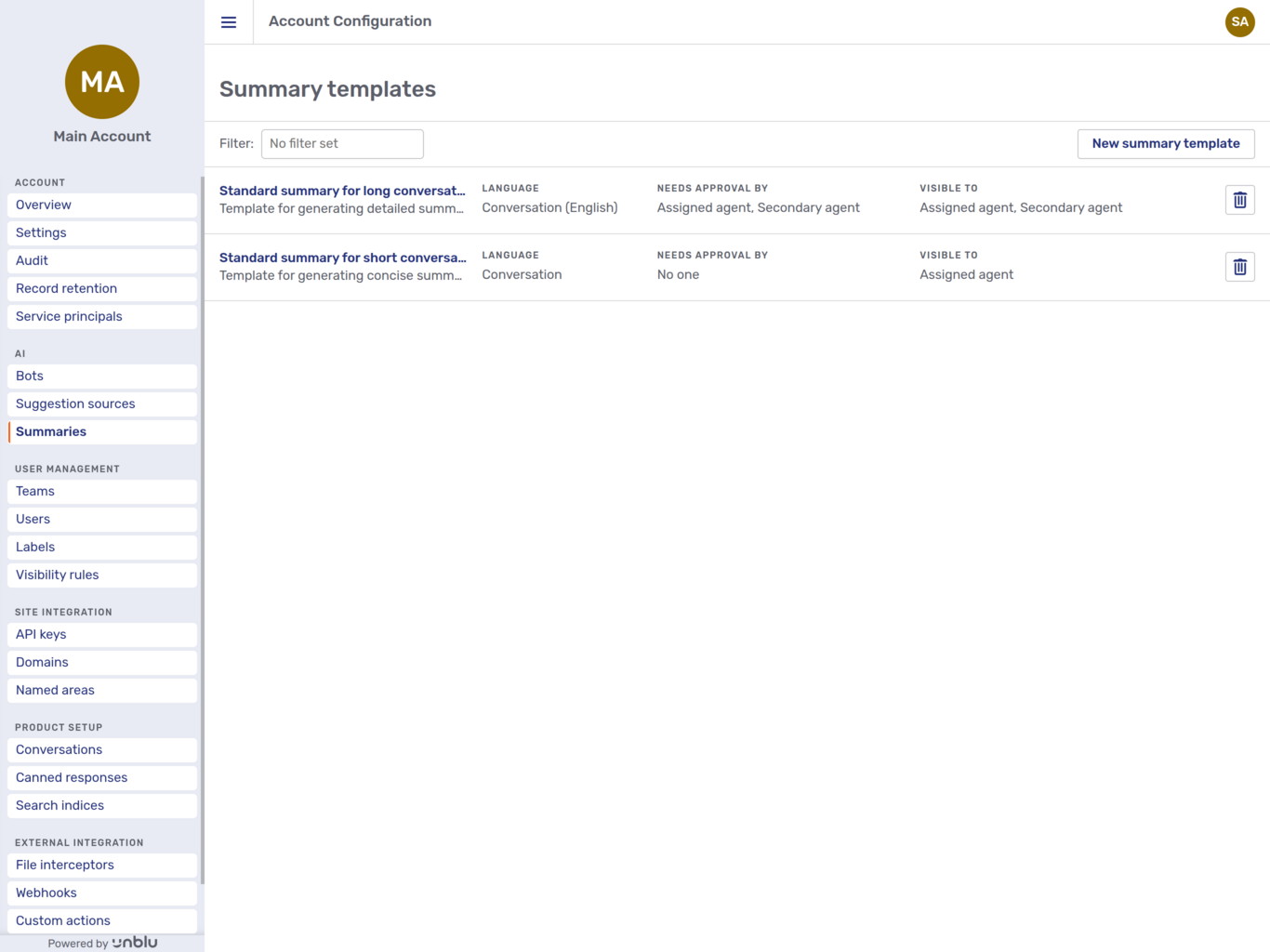
For each summary template, the overview page shows the following information:
-
The summary template’s name and description.
-
The language that summaries based on the template are generated in.
-
Who may approve the summary.
-
Who may see the summary.
-
A delete button
 .
.
Clicking the delete button displays a modal dialog:
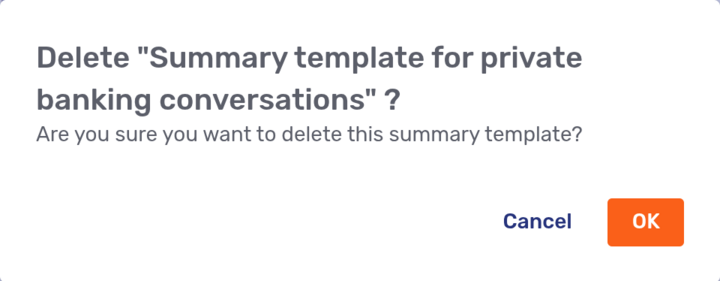
Clicking OK deletes the summary template. There’s no way to undo the deletion.
To create a new summary template, click the New summary template button. This opens a fly-in page with the same fields as the General tab, described below, of an existing summary template.
General
Clicking a summary template opens its General tab:
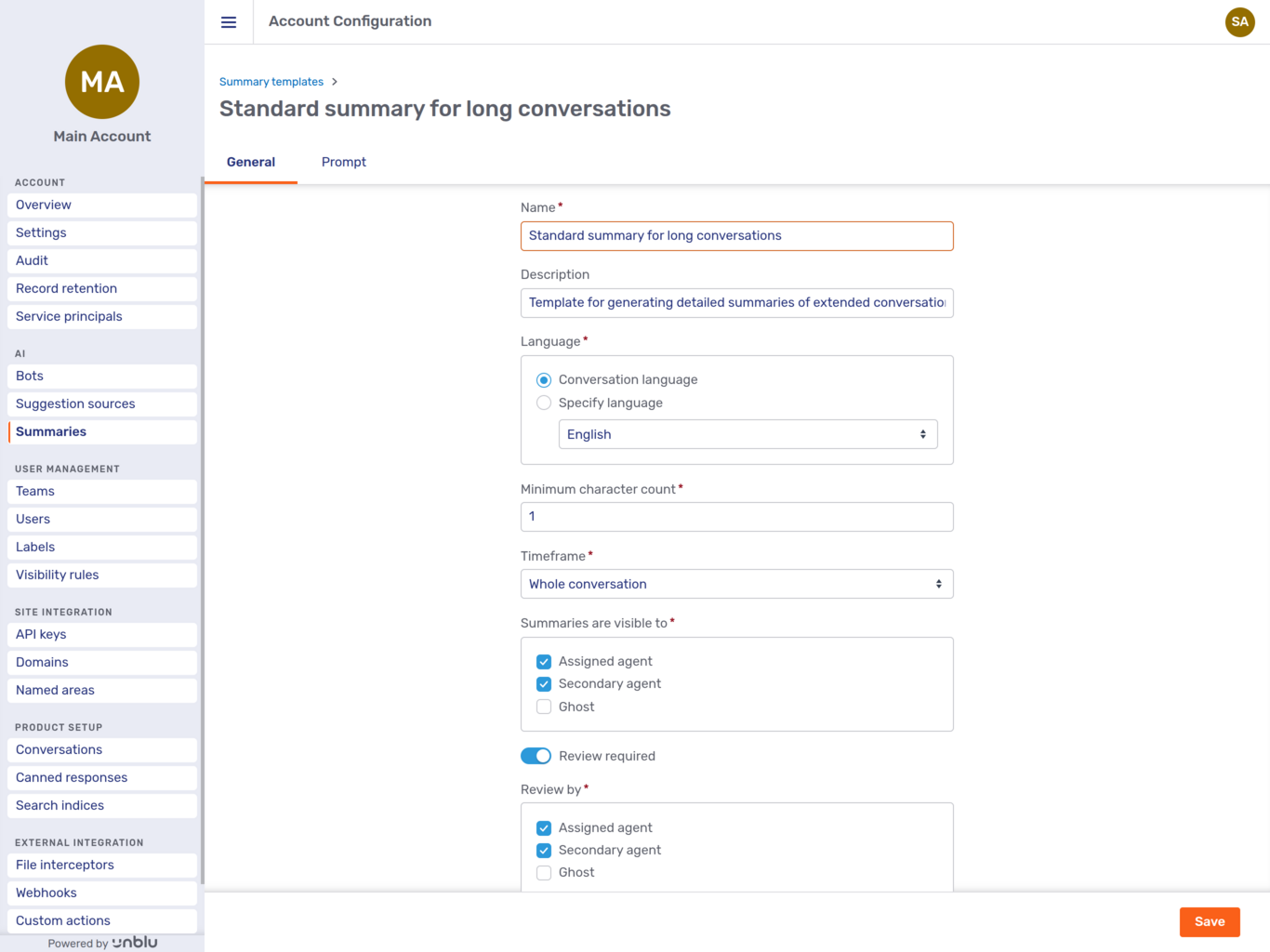
You can see the following settings:
-
The name of the summary template.
-
A description of the summary template.
-
The language that summaries based on this summary template are generated in. You can either choose a specific language or opt to generate the summary in the conversation language.
-
The minimum character count to trigger a summary. If a conversation consists of fewer characters, Unblu doesn’t generate a summary.
-
The timeframe to take into account when generating the summary. You can choose between the following timeframes:
-
The whole conversation. This takes into account all messages of the conversation, including the onboarding phase.
-
The whole conversation without onboarding.
-
Until last summary. If a summary was generated earlier in the conversation, the summary starts when the last summary ended.
-
Until last unassigned. With this timeframe setting, the summary starts when the assigned agent last left the conversation. This option is most likely to be of interest in long-running conversations.
-
Trigger specific
-
-
Which participant types summaries are visible to. You can grant access to the following participant types:
-
The assigned agent
-
Secondary agents
-
Ghost participants
-
-
The Review required toggle. If you switch the toggle on, the summary must be reviewed before it’s saved. Depending on when in the conversation lifecycle the summary is generated, this may mean that the conversation doesn’t end until the summary’s been reviewed.
If the toggle is on, you must specify the participant types allowed to review the summary in the Review by field.
-
Which participant types may review the summary. This field is only available if the Review required toggle is on. You can make the following participant types reviewers:
-
Assigned agent
-
Secondary agents
-
Ghost
Make sure that reviewers can see summaries according to the Visible to field.
-
Prompt
The Prompt tab lets you customize the prompt to use when generating a summary based on this template. The parts of the prompt that you can’t customize are defined in configuration properties.
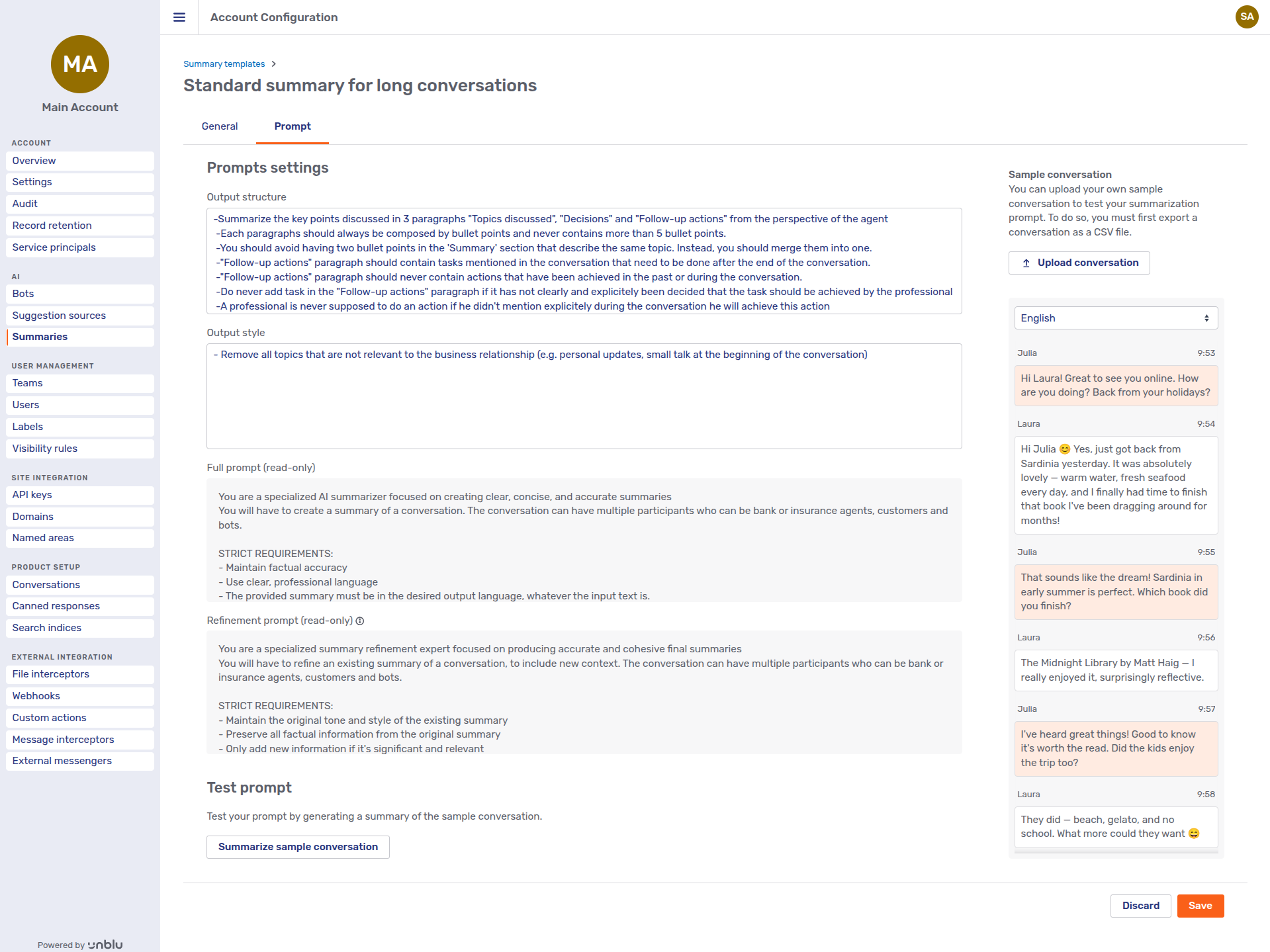
You can customize two aspects of the prompt:
-
Output structure, which replaces the
\{{promptCustomization}\}placeholder in the prompt configuration property. -
Output style, which replaces the
\{{promptStructure}\}placeholder in the prompt configuration property.
Beneath the two input fields, you can see the complete initial and refinement prompts with your customizations. For more information on the different prompts, refer to Define the prompt used for summarization in Generate conversation summaries.
The Test prompt section beneath the prompts lets you test your prompt with the sample conversation you see on the right of the tab. You can upload a conversation of your own to test your prompts by clicking the Upload conversation button above the sample conversation. Note that the file you upload must be in the CSV format used by Unblu to export conversations.
Set up conversation templates
To generate summaries of conversations based on a particular conversation template, you must enable com.unblu.conversation.conversation_summary.enableSummary in the CONVERSATION_TEMPLATE scope. If summaries should be approved, and you want to remind agents that they must do so, set com.unblu.conversation.conversation_summary.enableConversationSummaryOffboardingBot to true.
The main way to customize how Unblu generates summaries for a particular conversation template is the summary template. You specify which summary template to use in two configuration properties:
-
com.unblu.conversation.conversation_summary.conversationOffboardingSummaryTemplate defines which summary template is used to generate a summary triggered by the offboarding of a participant.
-
com.unblu.conversation.conversation_summary.conversationUnassignedSummaryTemplate specifies which summary template to use for a summary generated when a conversation’s state changes to
UNASSIGNED.
See also
-
For information on working with summaries as an agent, refer to Summary panel in the Agent Desk guide.
-
For information on working with conversation summaries using the Unblu web API, refer to the endpoints in the ConversationSummaries section of the web API reference.
-
For information on working with summary templates using the Unblu web API, refer to the endpoints in the ConversaitonSummaryTemplates section of the web API reference.